Just as you keep your internet-accessible devices safe from intrusions, securing your PDF documents should be a part of your overall data security plan. This is especially crucial as more documents are delivered digitally between remote users and the workplace. Additionally, with more organizations using cloud-based technology, greater control over password-protected PDFs is essential to prevent unauthorized access to them.
The simple act of password protecting your PDF files ensures that unauthorized parties are unable to access them without your permission. This is especially crucial if the PDF contains sensitive corporate or personal information. Password-protected PDF files can also be used if you make the material available only to subscribers who are given the passwords for their exclusive access.
The PDF password protection feature is also for users needing a higher level of protection for personal documents. This can include sensitive information such as tax files, legal documents, and financial records. This is especially important in cases where computers are shared, and other users can access your files.
Another reason to protect PDF files is that it keeps them safe from virus compromises and hackers. This is critical for small businesses who store client information on laptops and other portable devices that can be lost or stolen.
WinZip is not only one of the most efficient and popular compression applications around, but it can also help you protect your privacy by securing your valuable PDF information. The encryption process scrambles the data into an unreadable format. Entering the correct password will make the file readable by authorized parties.
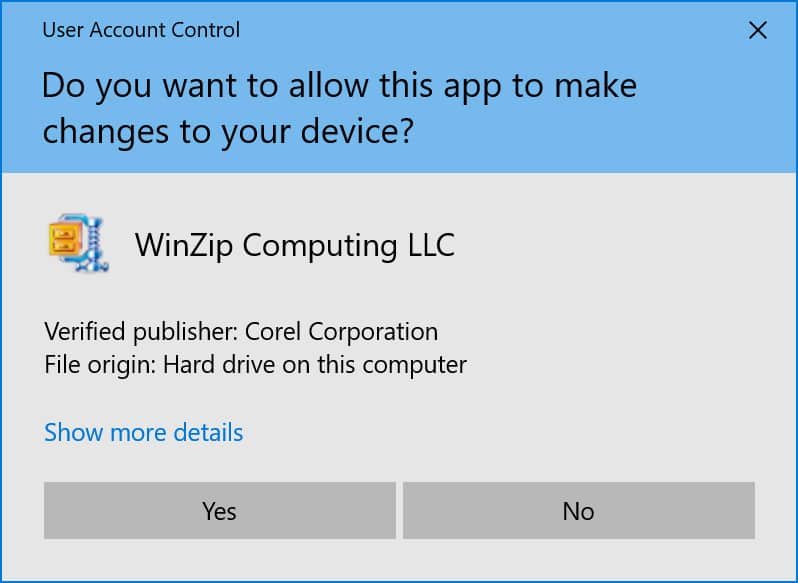
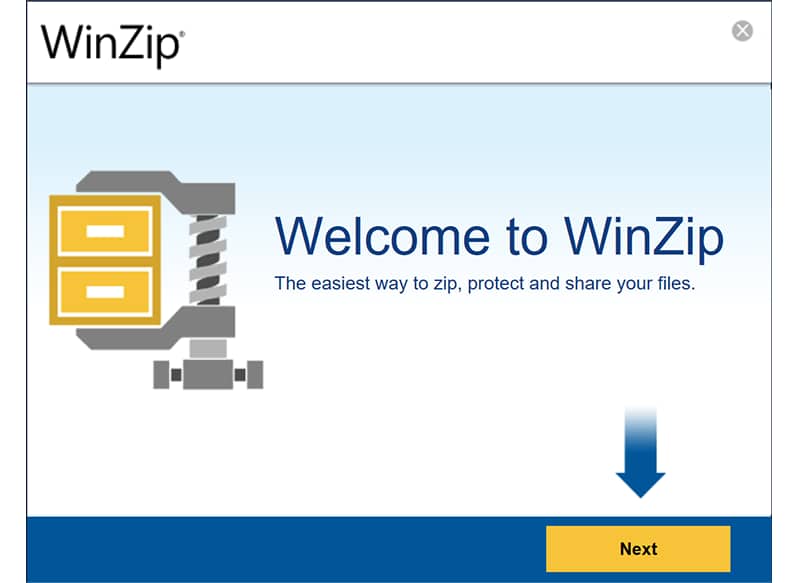
Using WinZip to password-protect your PDFs in just a few easy steps.
You can also customize different settings under Encryption Preferences in the Actions pane. In this selection, you will find options to change the encryption method, saved file location, save preferences, and other features.
After you have protected your PDF, you can immediately share or save the file using the options on the bottom half of the Actions window.
WinZip is continually working on new purpose-specific apps to improve the way you work with file compression, sharing, and encryption. WinZip PDF Pro is one such application that will improve your productivity through exclusive PDF document-friendly tools, including file encryption. PDF pro will also have the option to remove the password from a protected file.
Since many businesses use the PDF document format to ensure compatibility across all operating systems, secure password-protection within the WinZip compression software package is included. Encrypting sensitive PDF files on your computer or in the cloud keeps sensitive and confidential information from falling into the wrong hands.
Joining the WinZip family of powerful file utilities will be PDF PRO, offering strong password file protection and other powerful tools, so you can work more efficiently.
WinZip recently released their fastest utility software version ever and is available in both iOS and Windows versions.