WinZip Computing
home / powertips / winzip wizard interface / Email

WinZip Wizard Interface

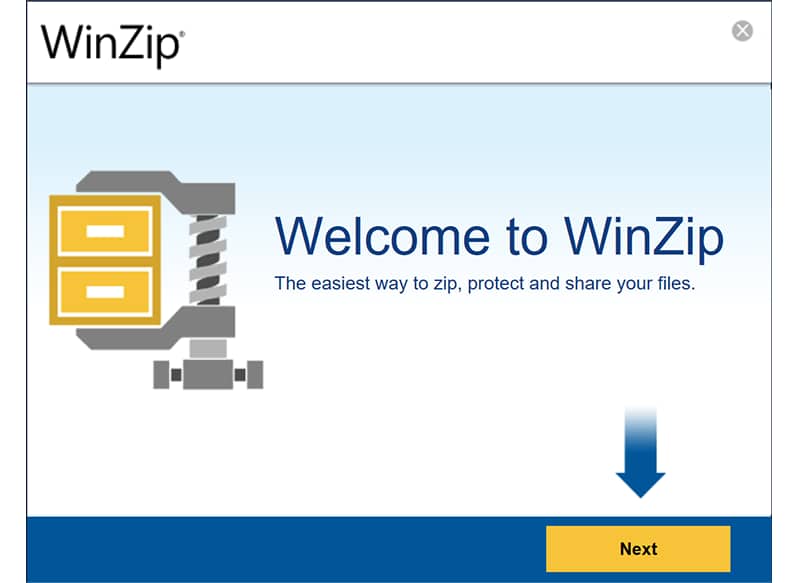
The WinZip Wizard is ideal for first-time and casual WinZip users. When you gain confidence or want to use more advanced zipping features, the more powerful WinZip Classic interface is just a mouse click away.

WinZip Wizard Screen

A Wizard is a series of panels or pages that help you through a task. The Wizard look and feel is standardized, and is used throughout Windows and in many applications. Wizards are especially useful for complex or infrequently performed tasks.

The WinZip Wizard automates the most common tasks involving Zip files. Using the Wizard, you can:

  • Quickly access Zip files you've downloaded: no need to use Windows Explorer to hunt for downloaded files. The Wizard lists the Zip files in your "Favorite Zip Folders" by date, with the most recent files first, so you can quickly access the files you most recently downloaded. A search feature will find any Zip files "lost" on your hard drive.
  • Automatically install software, desktop themes, and screen savers distributed in Zip files: if a Zip file contains a "setup" or "install" program, a desktop theme, or a screen saver, the Wizard will unzip the files, run the installation program (if appropriate), and clean up temporary files.
  • Easily zip, and unzip: just check the option for the action you want to perform, and the Wizard leads you through the process, step by step.
  • Decode MIME files (such as AOL e-mail attachments) quickly and easily.
  • Extract files from split or multiple disk ("spanned") Zip files.
  • Run pre-defined WinZip Job Files, or custom Job Files, that are provided to you from a trusted source.

WinZip Wizard vs. WinZip Classic Interface

Both the WinZip Classic and Wizard interfaces are included in all versions of WinZip. One click switches from the Wizard to the Classic interface and vice versa.

  • The WinZip Wizard interface is ideal if you want to know as little about Zip files as possible and just get started with the files you've downloaded. The Wizard lets you click the "Next" button a few times, and presto, your files are zipped, unzipped, or installed. When you want to use more advanced zipping features, you can easily switch to the Classic interface.
  • The award-winning WinZip Classic interface, featuring tight integration with the Windows shell and versatile drag-and-drop facilities, is great if you are comfortable using Windows and Windows Explorer or if you want to use advanced zipping features.

Go to the WinZip Product Information Page

     
Previous Feature   Next Feature