How do I compress a folder and later restore it?
How to compress a folder and its subfolders
| If you use the Classic interface |
If you use the WinZip Wizard |
- Start WinZip.
- Choose New Archive from the File menu.
- Type the name of the archive, e.g.,
MYDIR.ZIP
and press the Enter key.
- Type the full file specification of the files you want to add, e.g.,
C:\MYDIR\*.*
- Be sure the "Include subfolders" box is checked and the "Save full path info" box is not checked.
- Click the Add with wildcards button.
|
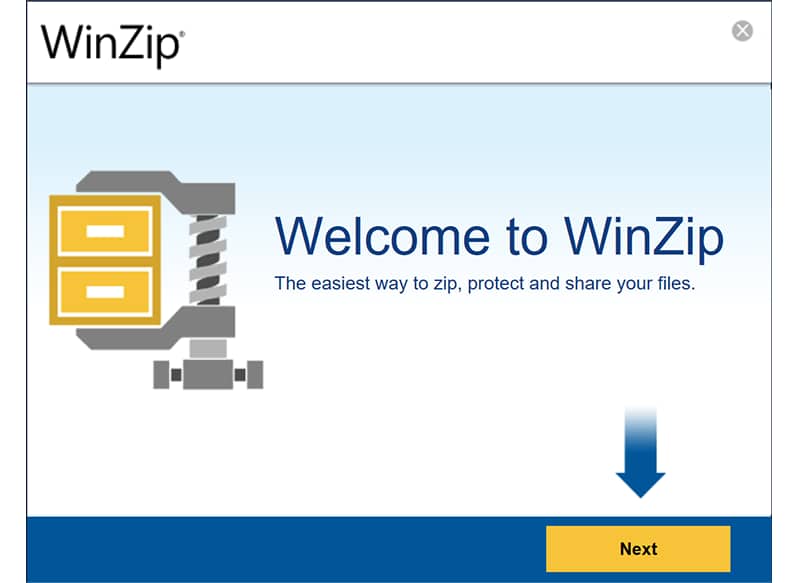
- Start WinZip and click Next in the Welcome panel.
- In the Select Activity panel, choose Create a new Zip file and click Next.
- Type the name of the archive, e.g.,
C:\MYDIR.ZIP
and click Next.
- Click Add Folders. Navigate to the desired folder, click to select it, and click OK to add it to the list.
- Click Zip Now.
|
Note: There are easier ways to do this, but this is the easiest to explain. In particular, using the drag-and-drop interface from My Computer or Windows Explorer can save you most of these steps.
How to decompress a folder and its subfolders
| If you use the Classic interface |
If you use the WinZip Wizard |
- Start WinZip and open the Zip file created in step 1 above.
- Choose Extract from the Actions menu.
- Be sure the Use folder names check box is checked.
- Type the destination folder, e.g.,
C:\MYDIR
- Press the Extract button
|
- Start WinZip and click Next in the Welcome panel.
- In the Select Activity panel, choose Unzip or install from an existing Zip file and click Next.
- Select the Zip file created above; if the Zip does not appear in the list of files, click Search to find it. Then click Next.
- In the Unzip panel, use Select different folder to choose the folder where you would like to restore the compressed folders and its subfolders, then click Unzip Now.
|
Return to Frequently Asked Questions